
Q1. How do I add members to my organization?
Select the organization you want to manage, then click the gear icon beside it to open Organization Settings. From there, choose Users to invite and manage members.

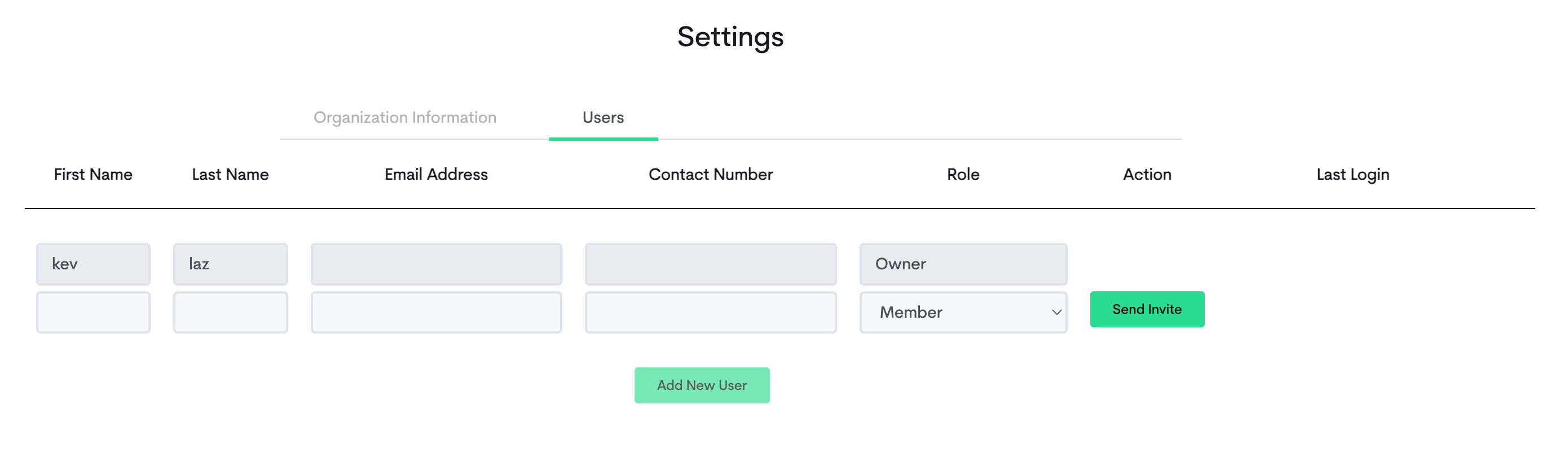
Q2. How many members can I invite?
There is no limit. You may invite as many members as your organization needs.
Q3. Does adding members cost extra?
No. Members are included with your subscription at no additional charge.
Q4. How does a member join my organization?
Invited members will receive an email invitation to join the organization. If they do not yet have a Maya Quick Tax account, they will be asked to create one by providing only their name, email address, and mobile number. If they already have an account, they simply need to accept the invitation. No new account is required. Once accepted, they will have access to the organization's Maya Quick Tax functions.
Q5. How long is an invitation valid?
Invitations expire 48 hours after they are sent. If an invitation expires, you may resend it from Organization Settings > Users.
Q6. I sent an invitation to the wrong email address. What can I do?
You may cancel the pending invitation from Organization Settings > Users, then send a new invitation to the correct email address.
Q7. Can I invite members during my free trial?
Yes. Inviting members is available during your free trial and while your subscription is active. If your trial or subscription expires, members will remain part of the organization, but access to the organization's paid features will be restricted until the subscription is renewed.
Q8. What can members do within the organization?
Members may file taxes and make tax payments on behalf of the organization. They can also view all of the organization's tax filing records, including filings made before they joined and filings made by other members.
Q9. Can members invite other members into my organization?
No. Only the organization owner can invite members.
Q10. Can members access my subscription?
Members have view-only access to subscription details. Subscription-related actions such as subscribing, renewing, upgrading, and updating payment details are available only to the organization owner.
Q11. Can one person be a member of multiple organizations?
Yes. A single Maya Quick Tax account can be a member of more than one organization.
Q12. How do I remove a member?
Go to Organization Settings > Users, then select Delete Member beside the member you want to remove. Removed members are not notified. The organization will simply no longer appear in their list of organizations.
Q13. Who is the organization owner, and can this be changed?
The organization owner is the user who created the organization. Ownership cannot be transferred within the platform. If a change of ownership is necessary, you may submit a request through the Help Center. Supporting documents will be required to verify the request.