Learn how to add a SLSP Attachment to your BIR Form 2550-Q in Maya Quick Tax.
Also known as Summary Lists of Sales and Purchases, SLSP files support the third-party information program of the BIR via cross-referencing with the information presented in the taxpayer’s list of sales/purchases.
This article will cover:
Summary Listing of Sales
Summary Listing of Purchase
Importation of Goods
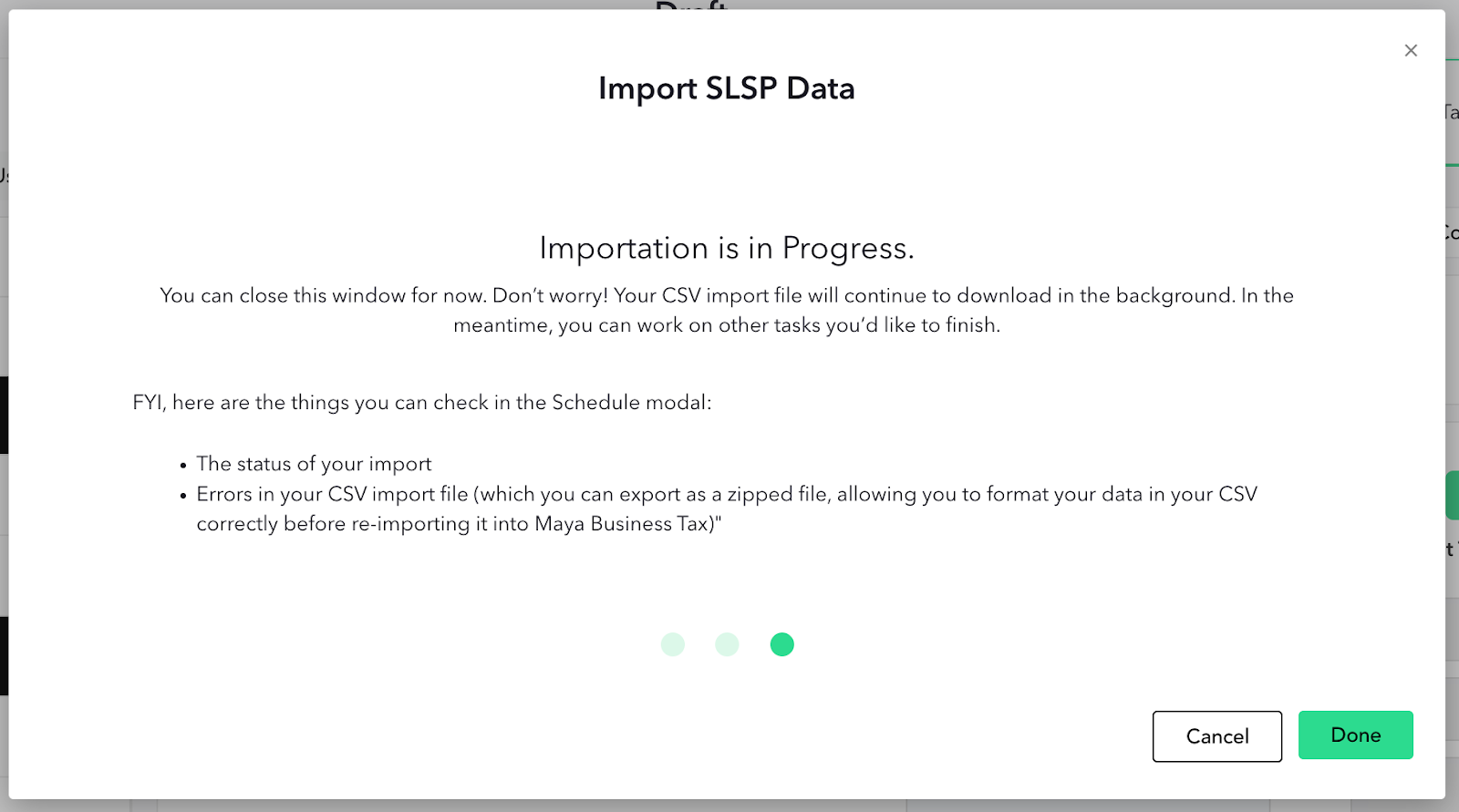
You can start entering your data by clicking the Summary Listing of Sales button.
If you choose to enter your source data in the Summary Listing of Sales, all data will be picked up from there and schedule 1(Item 15A) and items 16 to 18 will be disabled moving forward.
If you choose to enter your data in Schedule 1 in items 16 to 18, all the fields inside Summary Listing of Sales will be disabled for manual entry. Adding, editing, and deleting information will no longer be allowed.
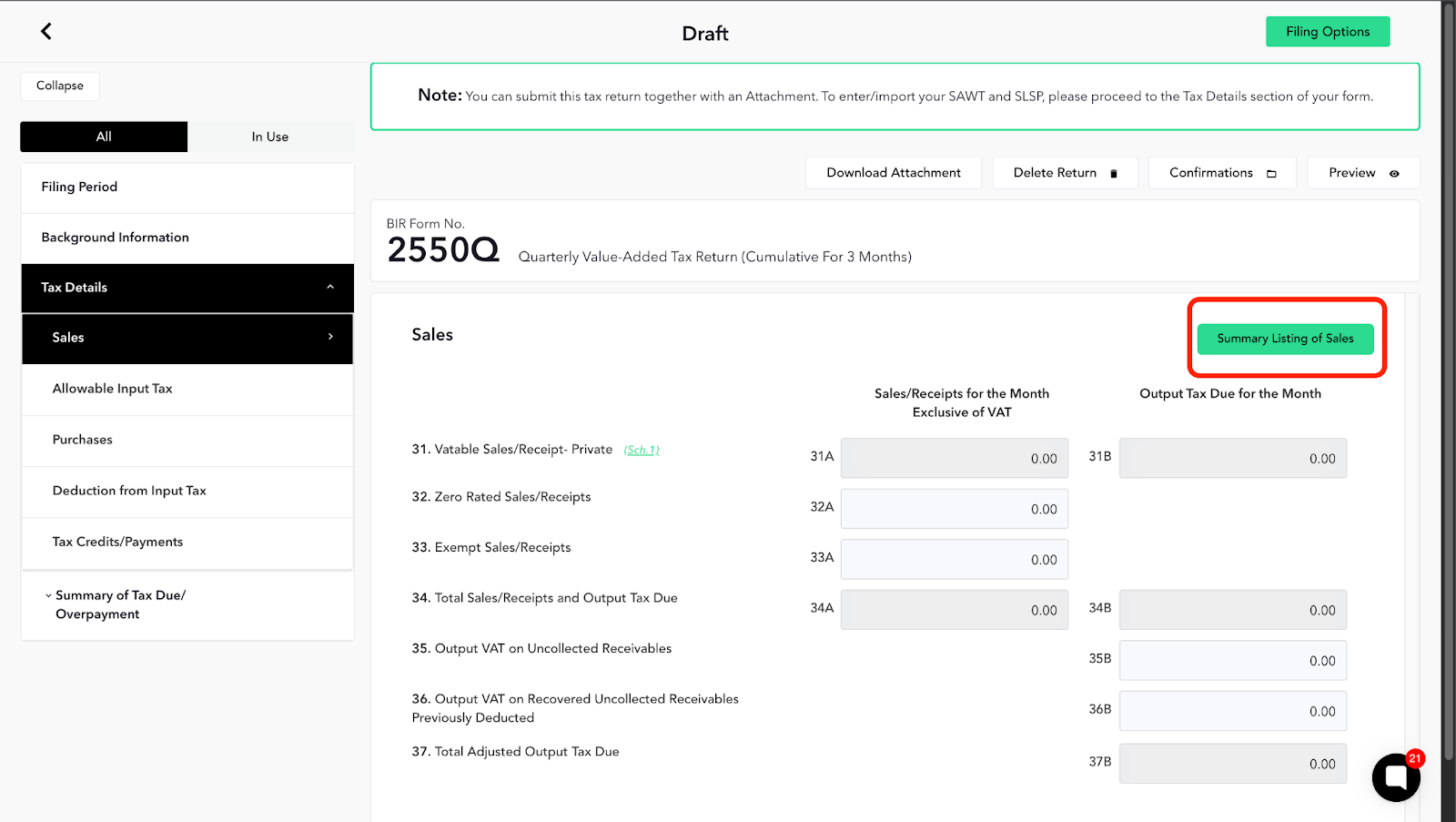
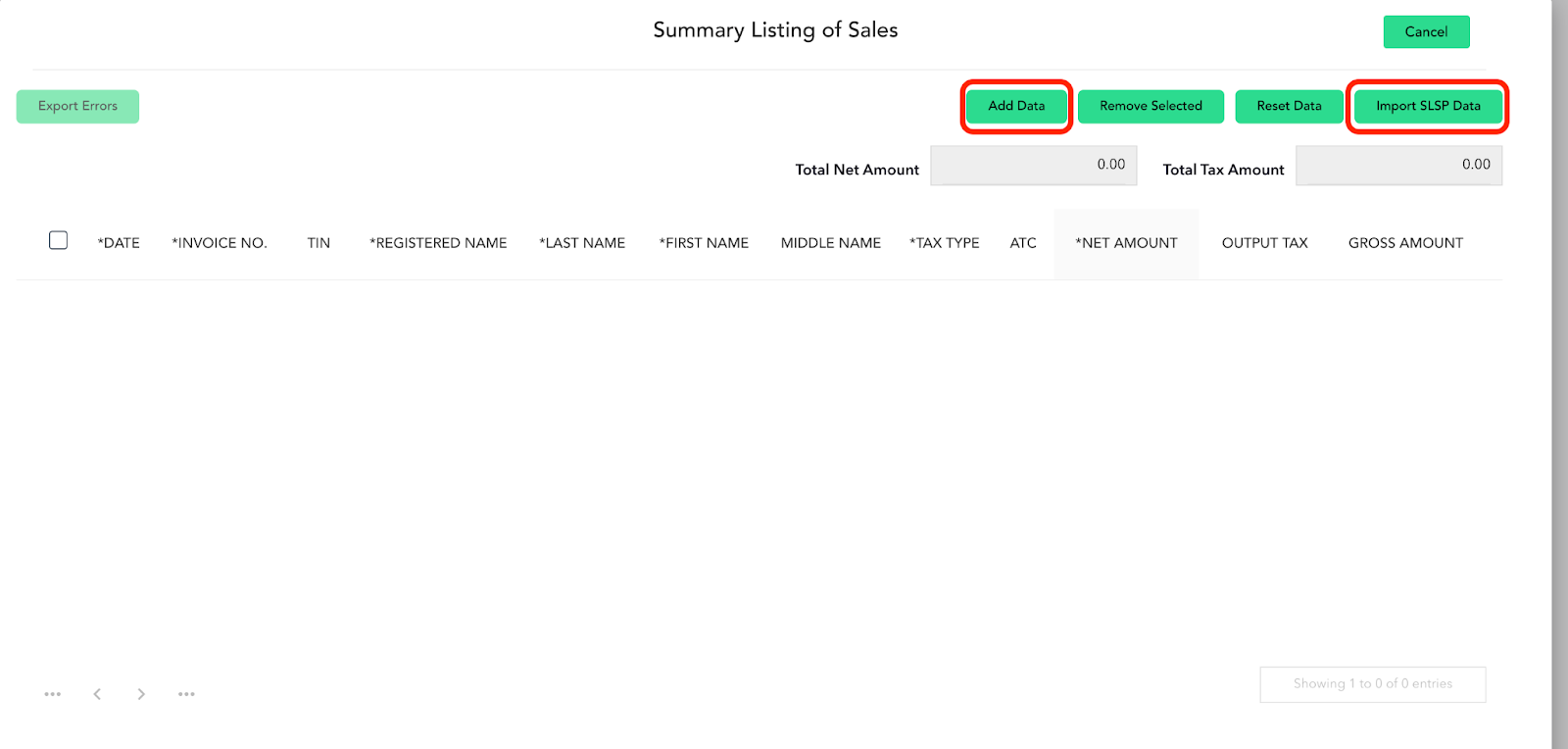
a. Add Data - you can use this button to manually add your data. Mandatory fields are those marked with an asterisk (*).
b. Remove Selected - this button will allow you to select and delete a whole line of data from your Schedule.
c. Reset Data - this allows you to remove all the data inside the modal.
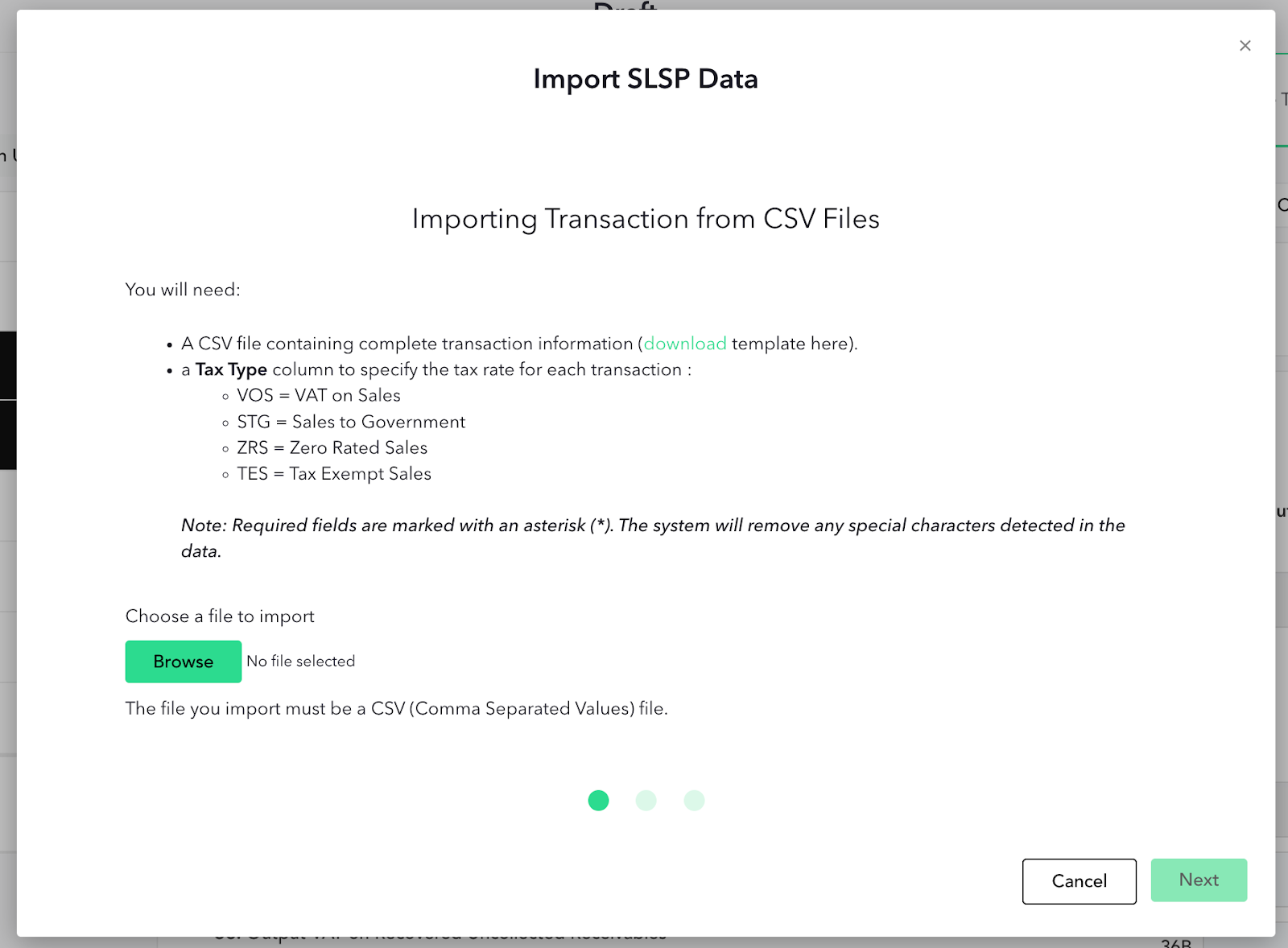
d. Import SLSP Data - this lets you bulk import large quantities of data at once. This is especially helpful to users with hundreds or thousands of records.
e. Save - The first button will change into Save once you already started adding a line.
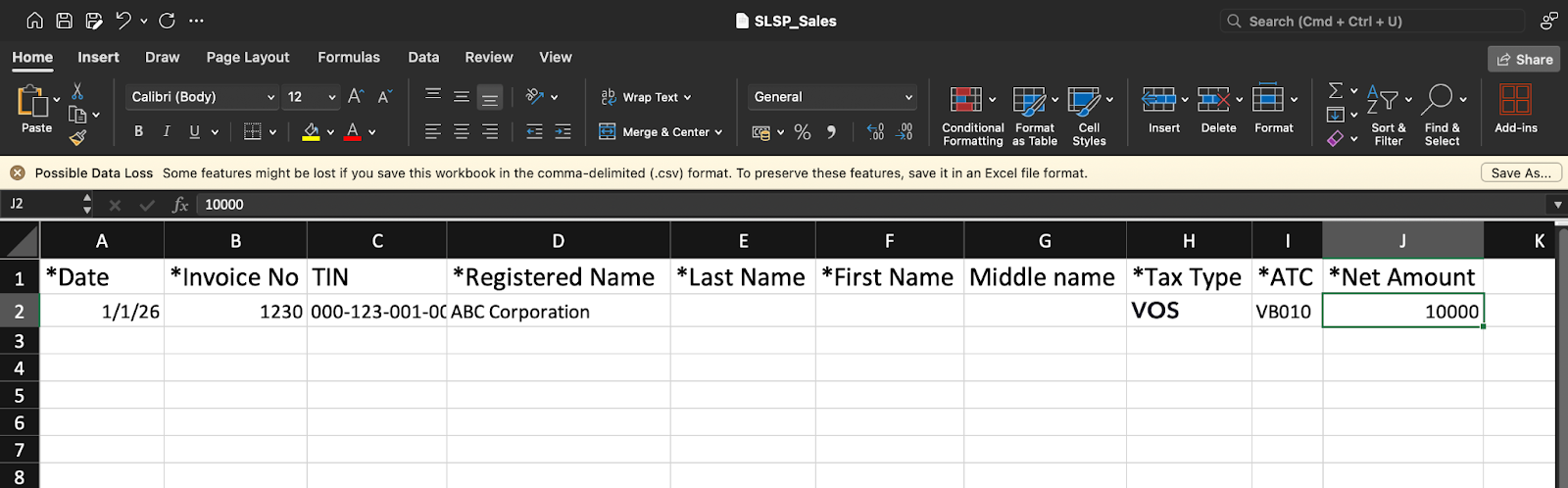
STEP 1: If you already have your SLSP file prepared, simply click the Browse button. If you don’t have one ready, you can also download the template provided by Maya Quick Tax. Simply click the download.
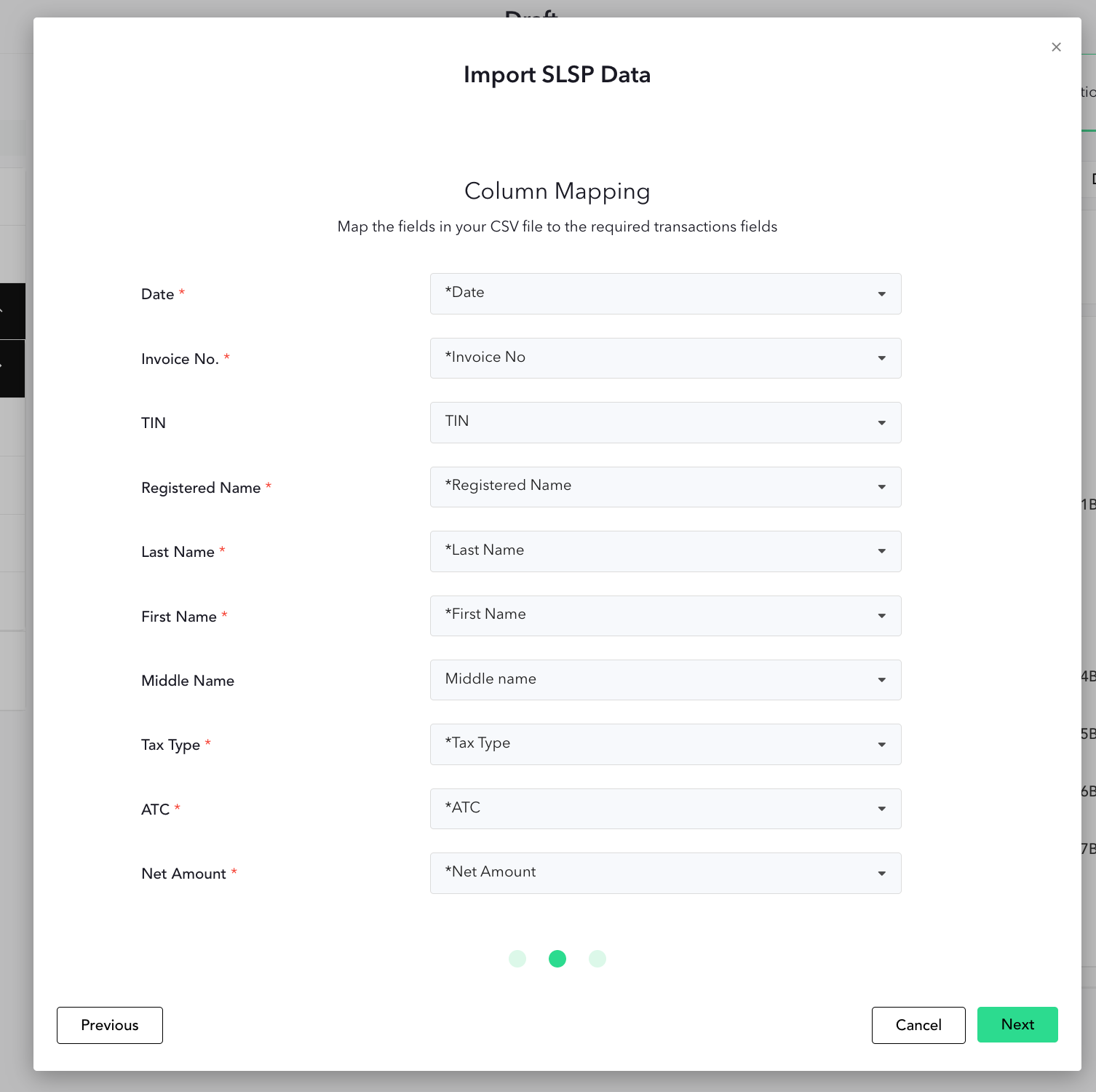
STEP 2: Map out the necessary fields.
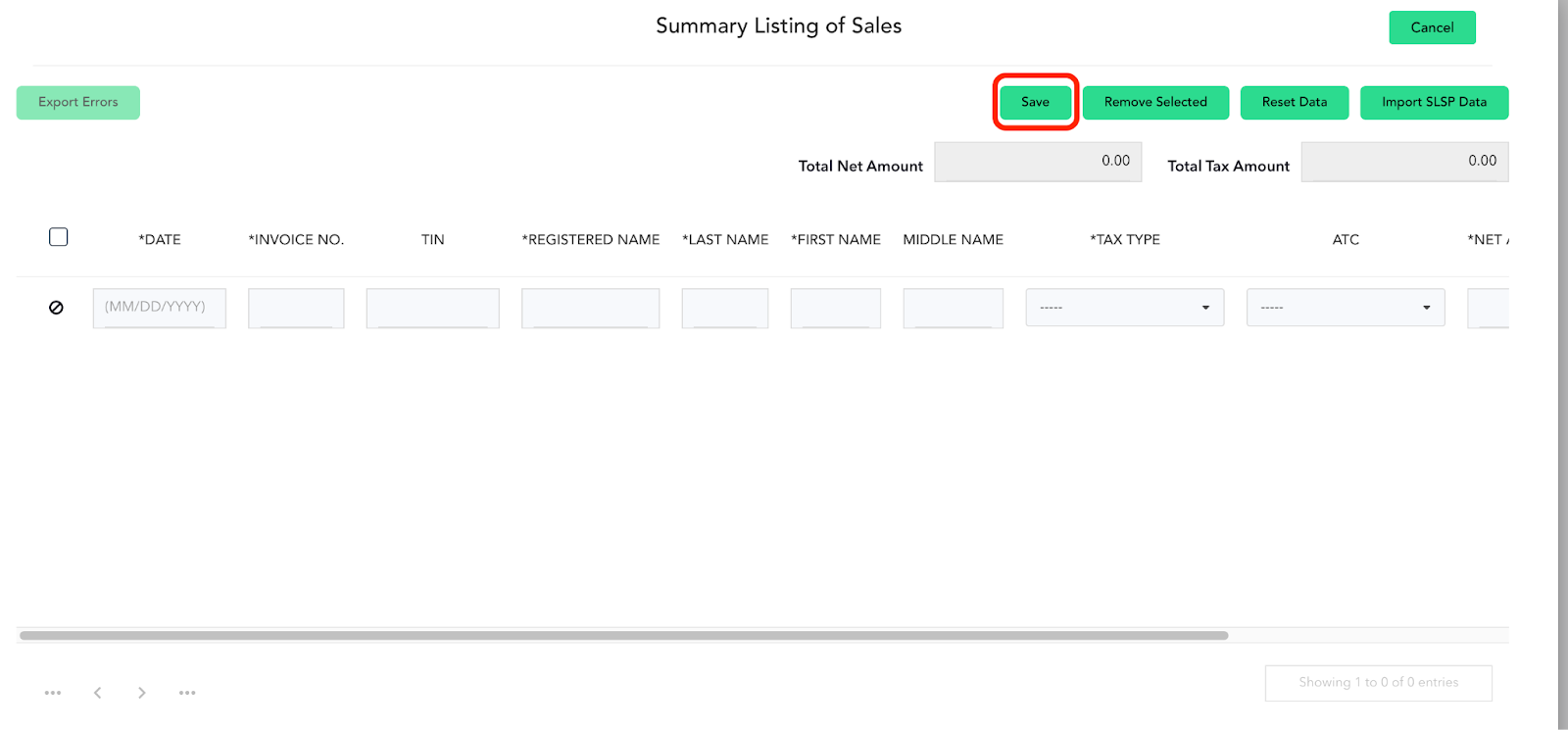
STEP 3: That’s it! The importing of your data will keep running in the background which means you won't have to wait for it and you can move on to other tasks in the meantime.
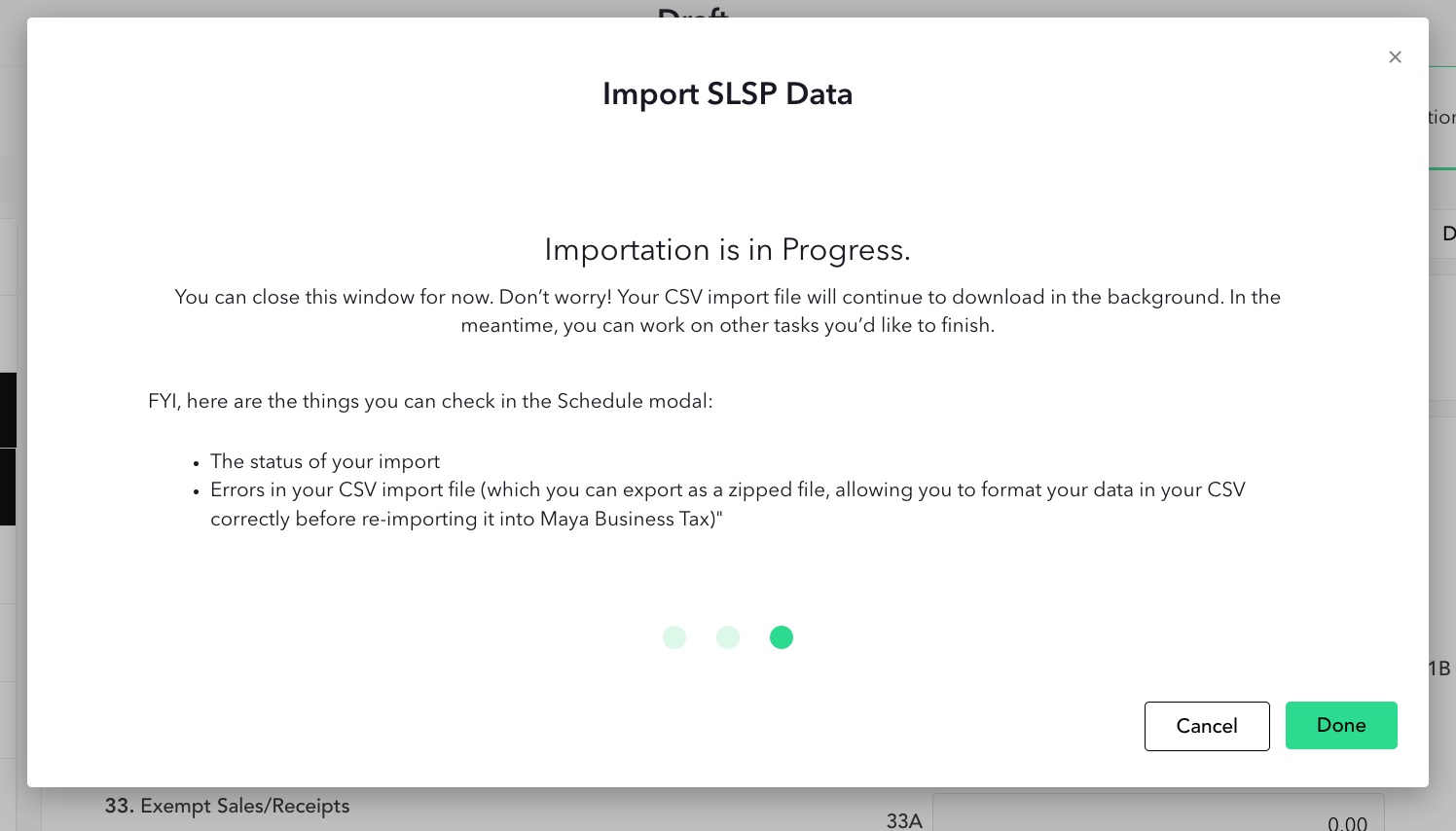
Once done uploading, you can see the status of your import as well as the errors of your imported file through the modal.
If you choose to enter your source data in the Summary Listing of Purchase, all data will be picked up from there and the following Schedules & Items will be disabled.
If you choose to enter your data directly to 44 A/B. Domestic Purchases, all the fields inside Summary Listing of Purchase will be disabled for manual entry. No attachment (SLP) will be created. This process is the same with the Domestic Sales field.
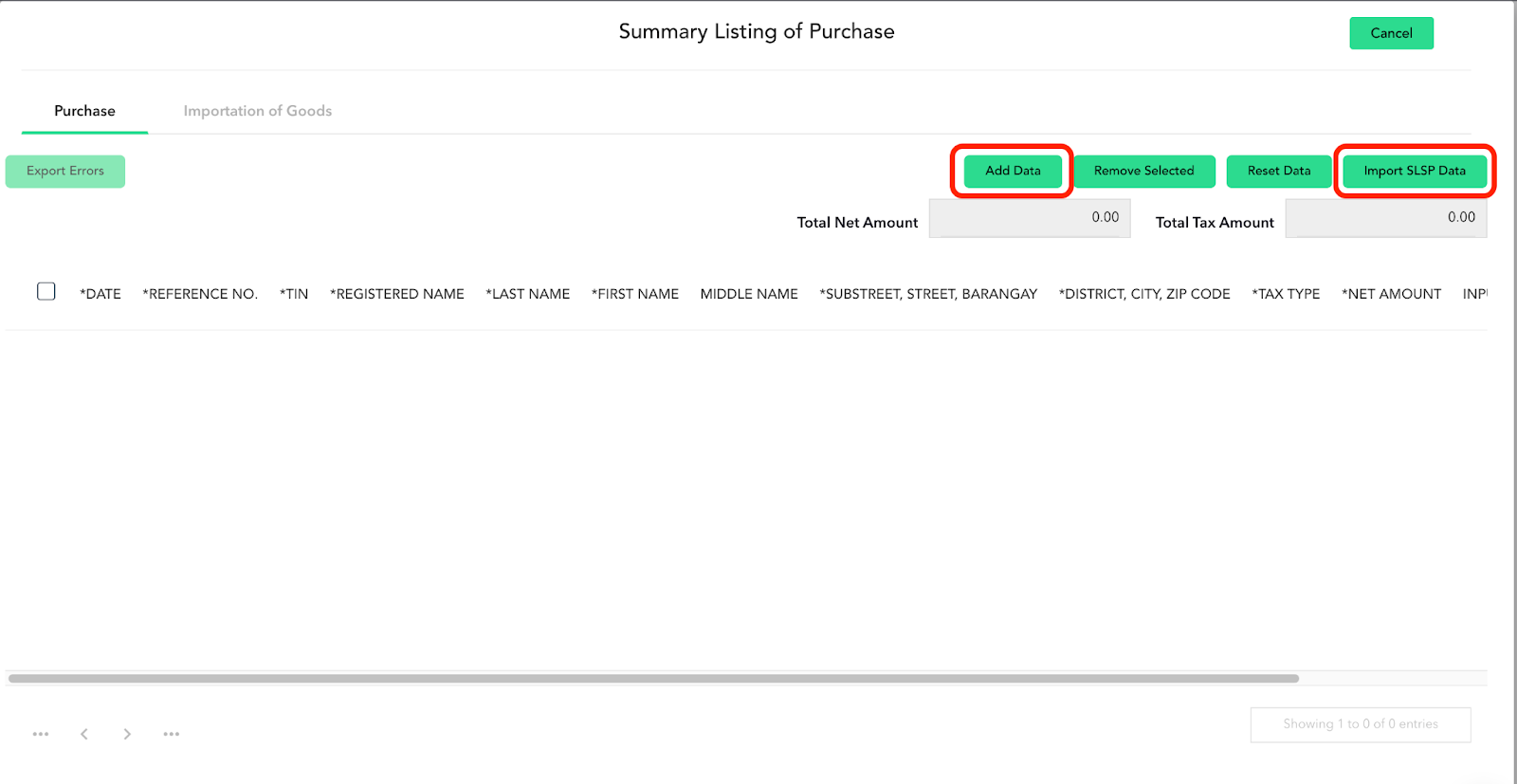
a. Add Data - you can use this button to manually add your data. Mandatory fields are those marked with an asterisk (*).
b. Remove Selected - this button will allow you to select and delete a whole line of data from your Schedule.
c. Reset Data - this allows you to remove all the data inside the modal.
d. Import SLSP Data - this lets you bulk import large quantities of data at once. This is especially helpful to users with hundreds or thousands of records.
STEP 1: If you already have your SLSP file prepared, simply click the Browse button. If you don’t have one ready, you can also download the template provided by Maya Quick Tax. Simply click the green text that says download.
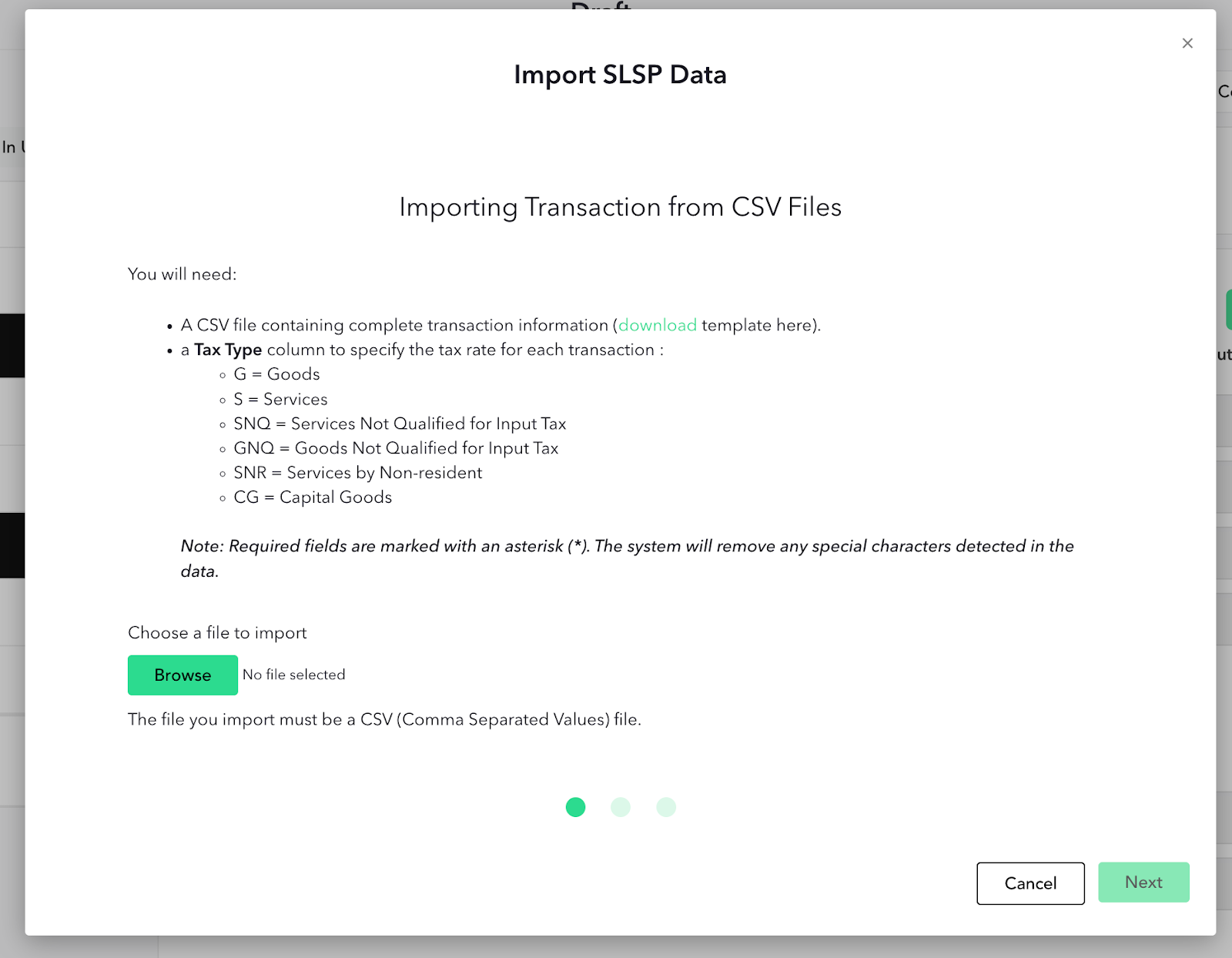
STEP 2: Map out the necessary fields.

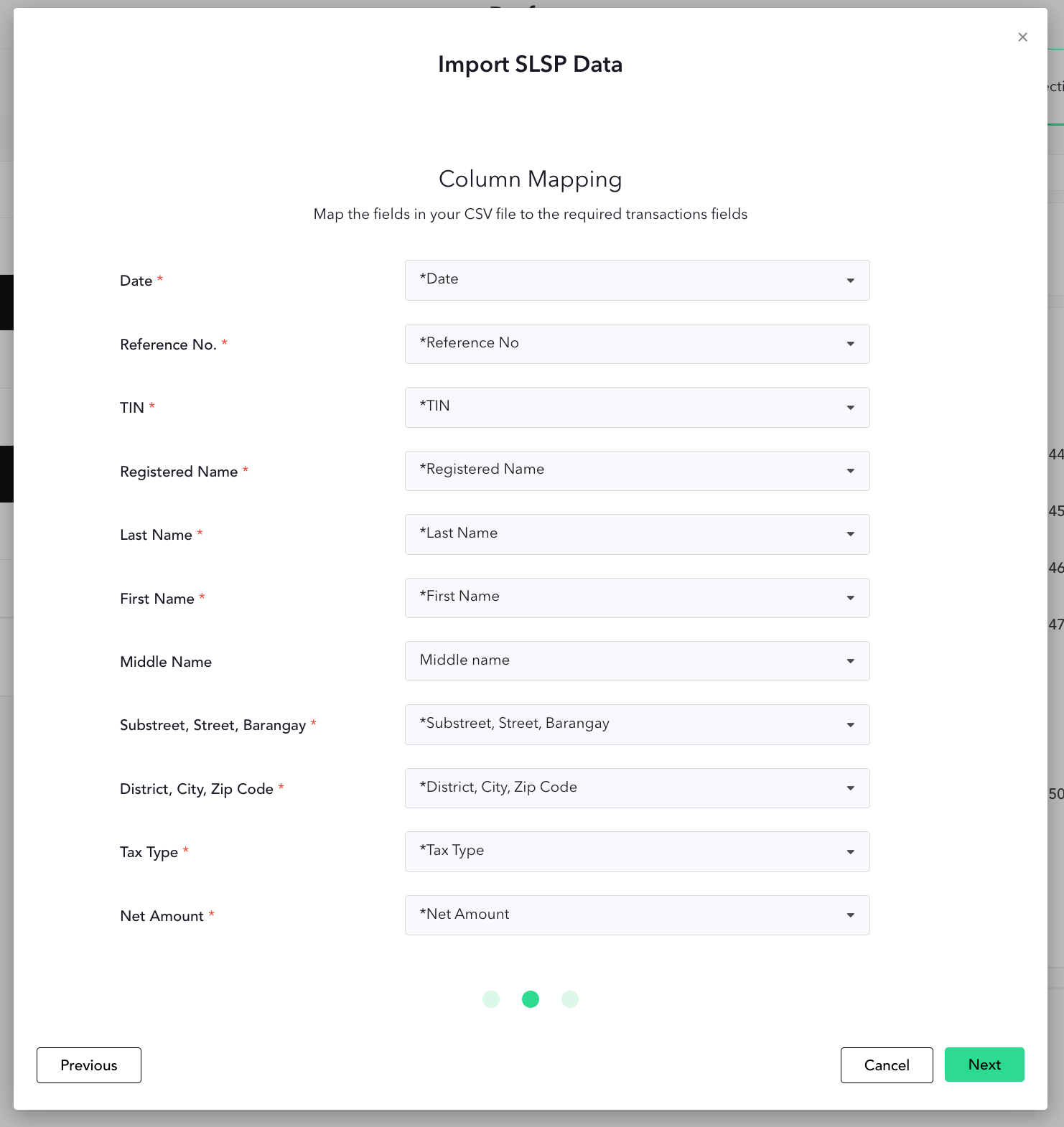
STEP 3: That’s it! The importing of your data will keep running in the background which means you won't have to wait for it and you can move on to other tasks in the meantime.