Maya Quick Tax allows you to generate required BIR attachments such as:
SLSP (Summary Listing of Sales and Purchases) – for VAT
SAWT / QAP (Alphalist of Payees) – for withholding tax returns
Other required schedules for specific forms
These attachments are automatically created when you properly complete the schedule inside the return.
There is a critical difference between:
Manually entering totals inside the tax form
Completing the schedule that generates the attachment file
If you only enter totals manually in the form, the tax return will compute - but no attachment file will be created.
To generate the required RELIEF attachment, you must complete the schedule screen.
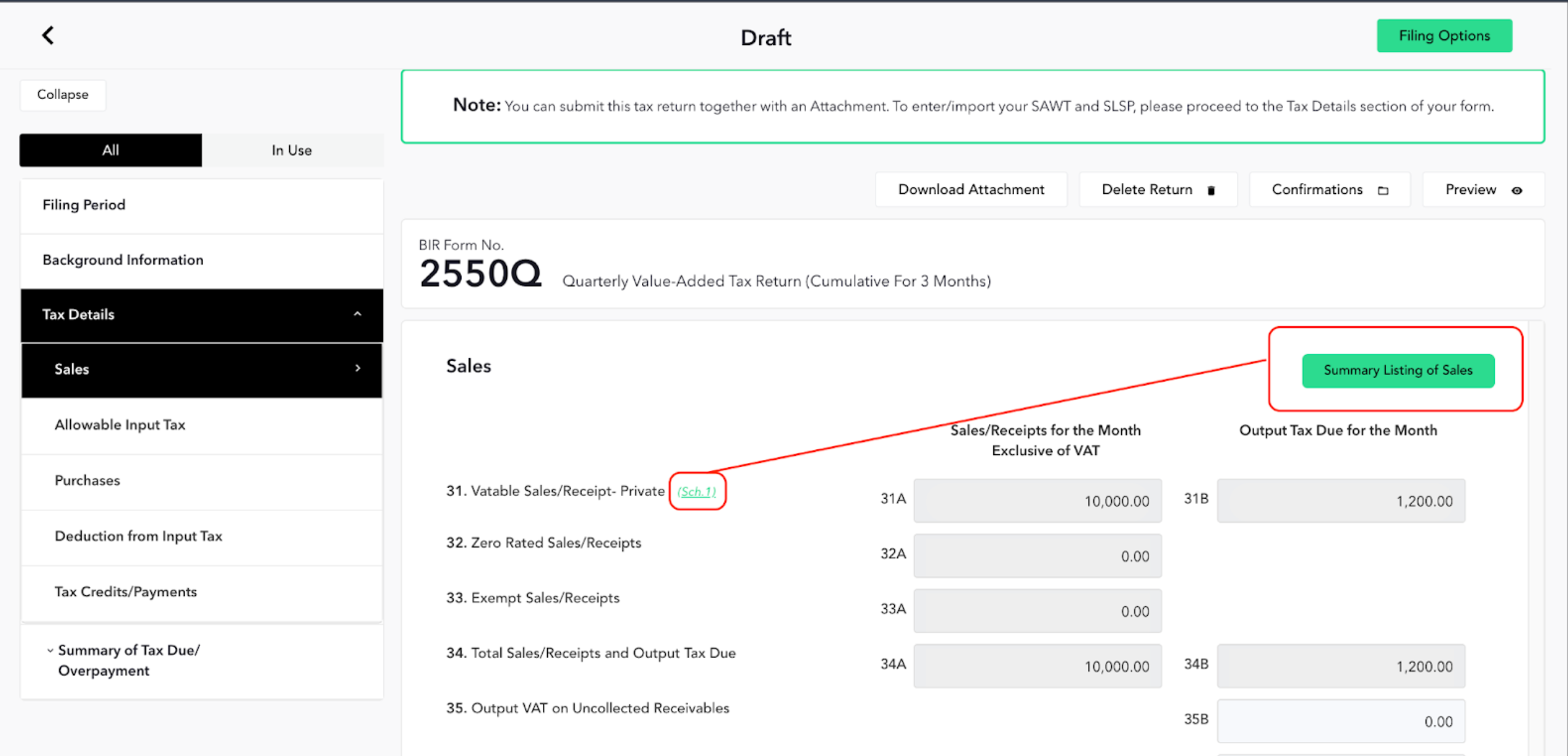
Inside the VAT return:
Click Summary Listing of Sales
Or click Summary Listing of Purchases
This opens the SLSP screen.
You may:
Add transactions one by one using Add Data
Or click Import SLSP Data to upload via spreadsheet
Once saved:
The totals automatically populate in the VAT return.
The SLSP attachment file is generated.
You may click Download Attachment at the top of the return to retrieve the SLSP file.
This SLSP attachment will be transmitted together with the VAT return during filing.
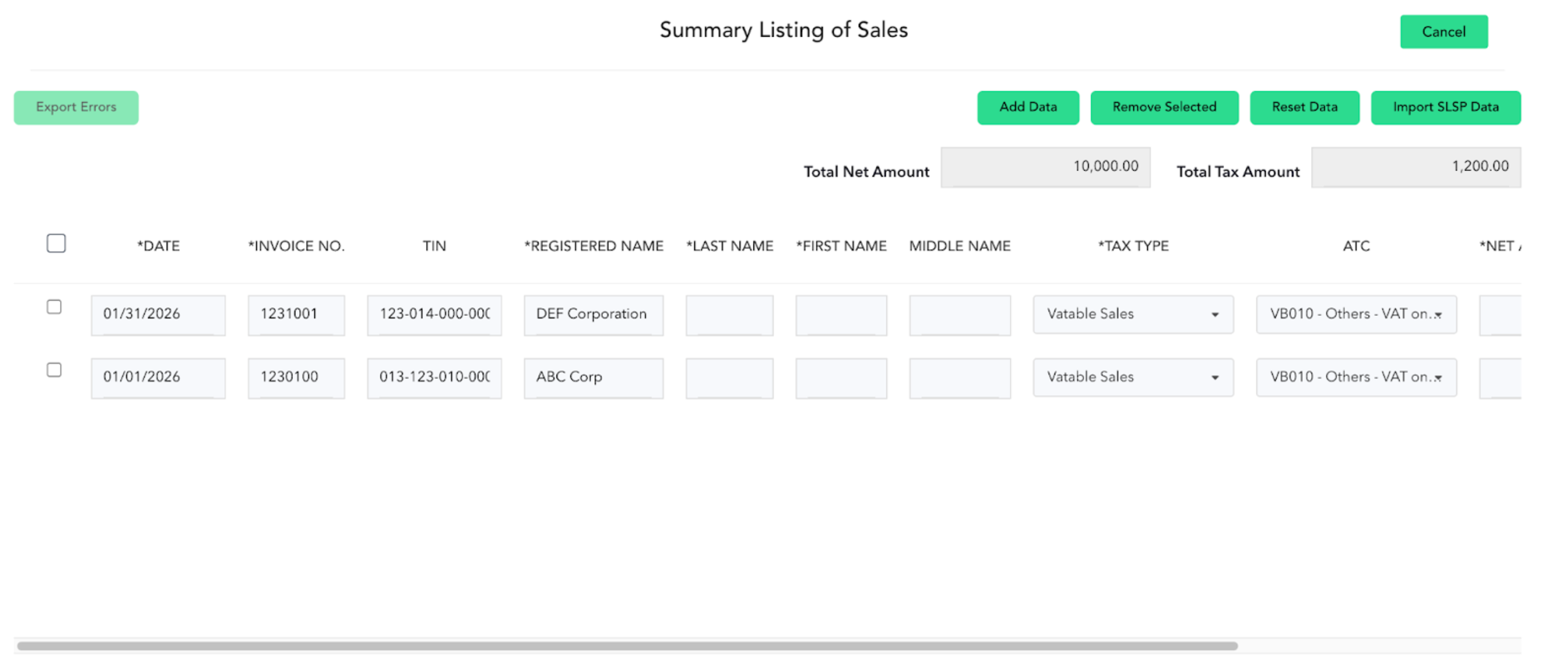
If you only click the schedule summary to populate totals without entering detailed transactions:
The VAT form will reflect the total amount.
But no SLSP attachment file will be created.
Detailed transactional input is required for RELIEF attachment generation.
Inside Form 1601-EQ:
You will see the Summary Listing of Withholding button. Click this to open the schedule screen.
Inside the schedule:
Add payees manually, or
Import via spreadsheet
Once entries are saved:
The system consolidates the totals into the main return.
The QAP attachment file is generated automatically.
At the top of the return, you will see the Download QAP button. This allows you to download the generated alphalist file. When filing via Filing Options, the return and QAP attachment are transmitted together.
When you use the Summary Listing of Withholding:
Manual entry in the consolidated ATC table may be disabled.
The schedule becomes the source of truth.
Totals in the return are based on the schedule data.
This ensures consistency between the form and the attachment.
For SAWT (Summary Alphalist of Withholding Tax)
SAWT is required when claiming creditable withholding taxes in income tax returns.
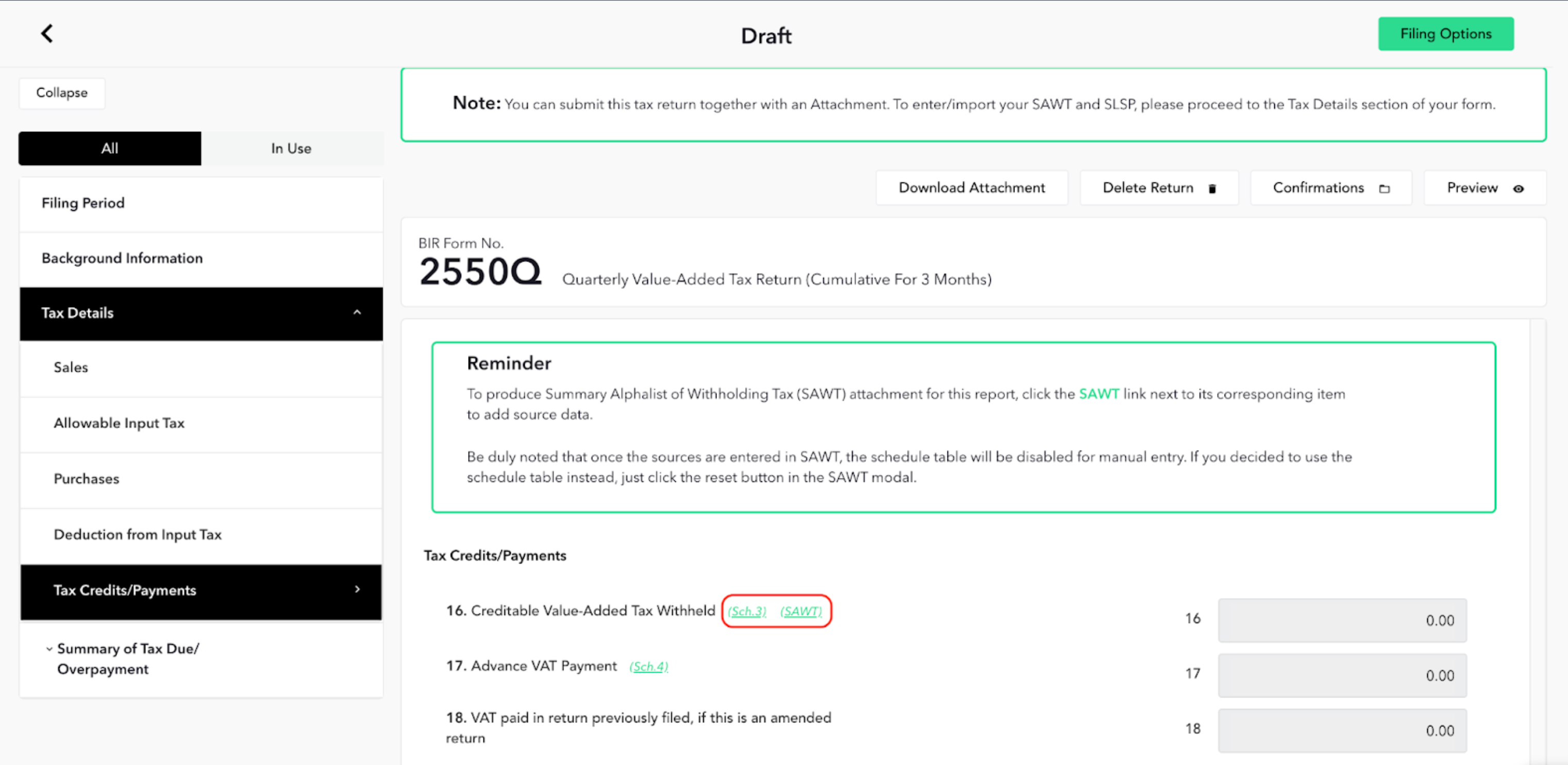
Inside the applicable income tax return:
Locate the line item for Creditable Tax Withheld.
Click the SAWT link beside the schedule reference.
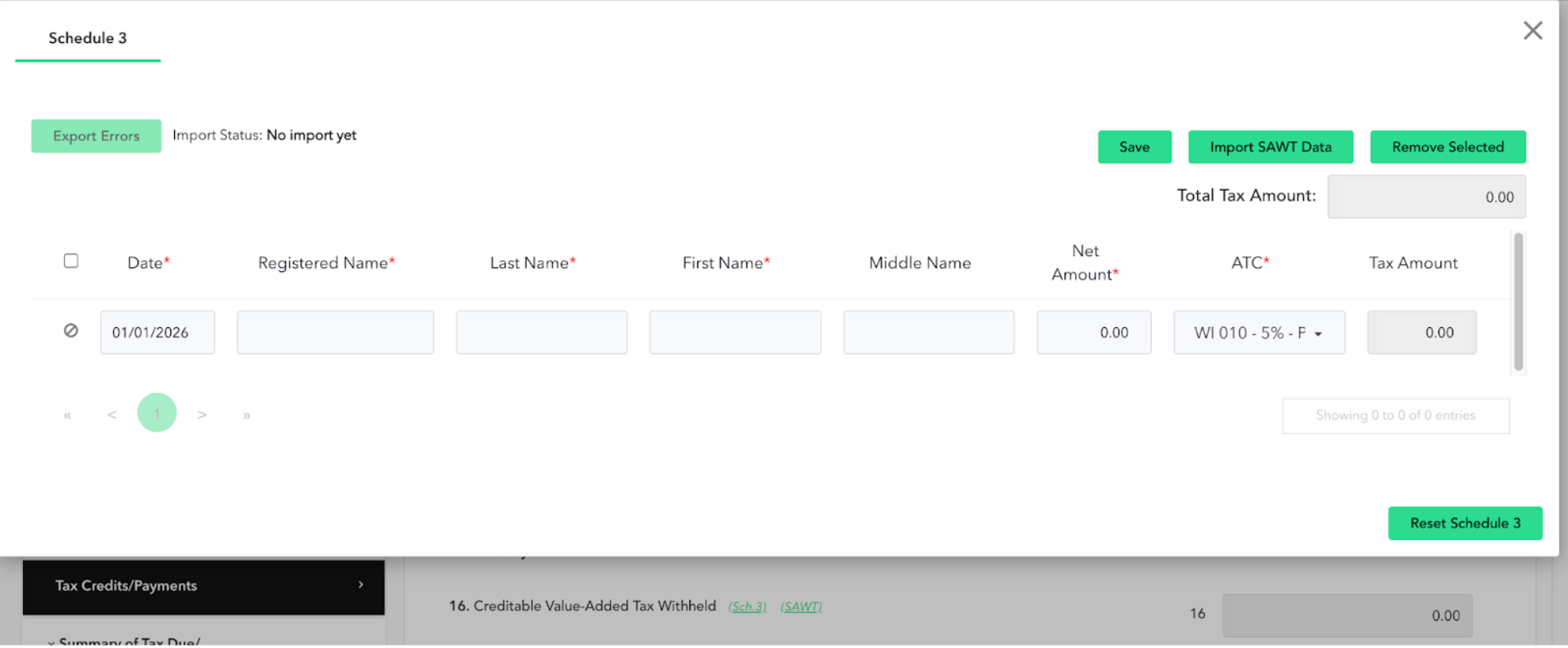
This opens the SAWT schedule screen.
Enter or Import SAWT Data
You may:
Encode withholding details one by one, or
Import via spreadsheet template
Once saved:
The totals automatically populate in the income tax return.
The SAWT attachment file is generated.
You can download it using the Download Attachment button at the top of the return.
When you file the return, the SAWT file is transmitted together with the form.
Before clicking Filing Options:
Confirm required schedules have been completed.
Click Download Attachment (for VAT) or Download QAP (for 1601-EQ).
Review the generated file.
Ensure totals match your return.
If no file downloads, the schedule was not properly completed.
