This section will provide you with the steps in filling out your tax forms using Maya Quick Tax
STEP 1: On your Maya Quick Tax Dashboard:
i. Choose the organization that you wish to generate a form for
ii. Click the Start Return button.
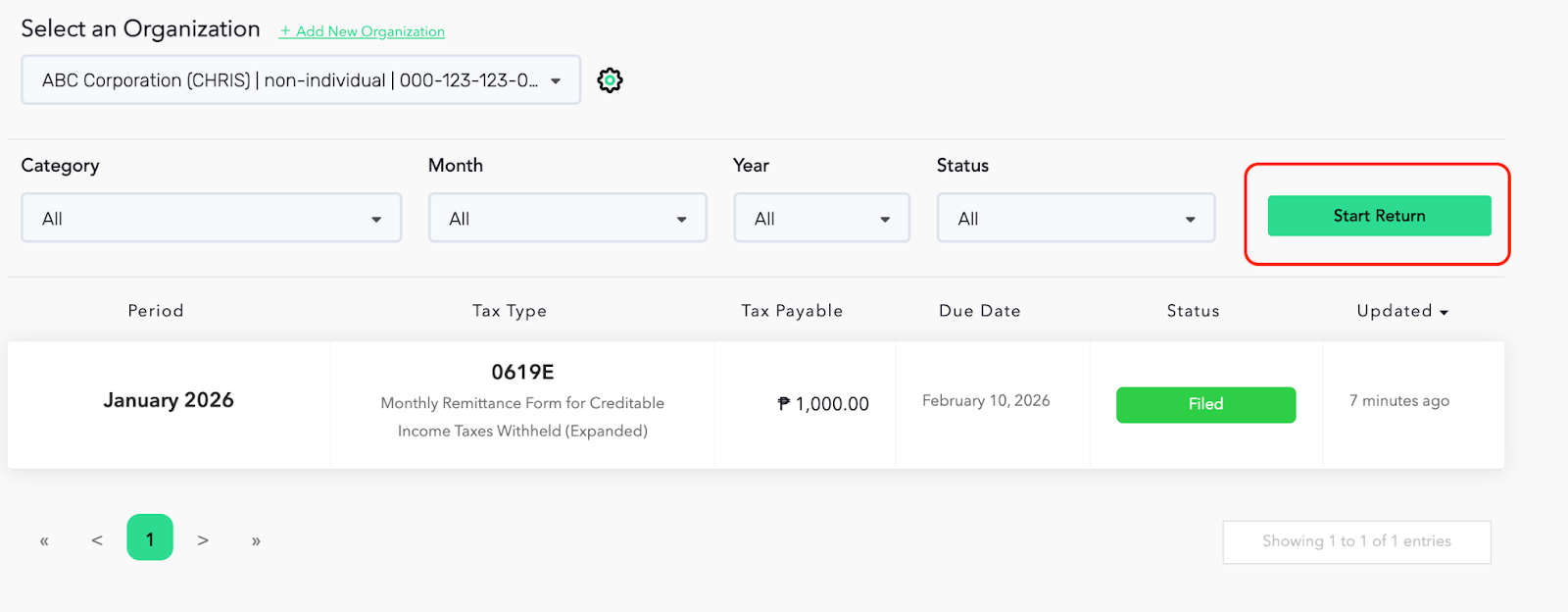
STEP 2: Choose the return you wish to generate.
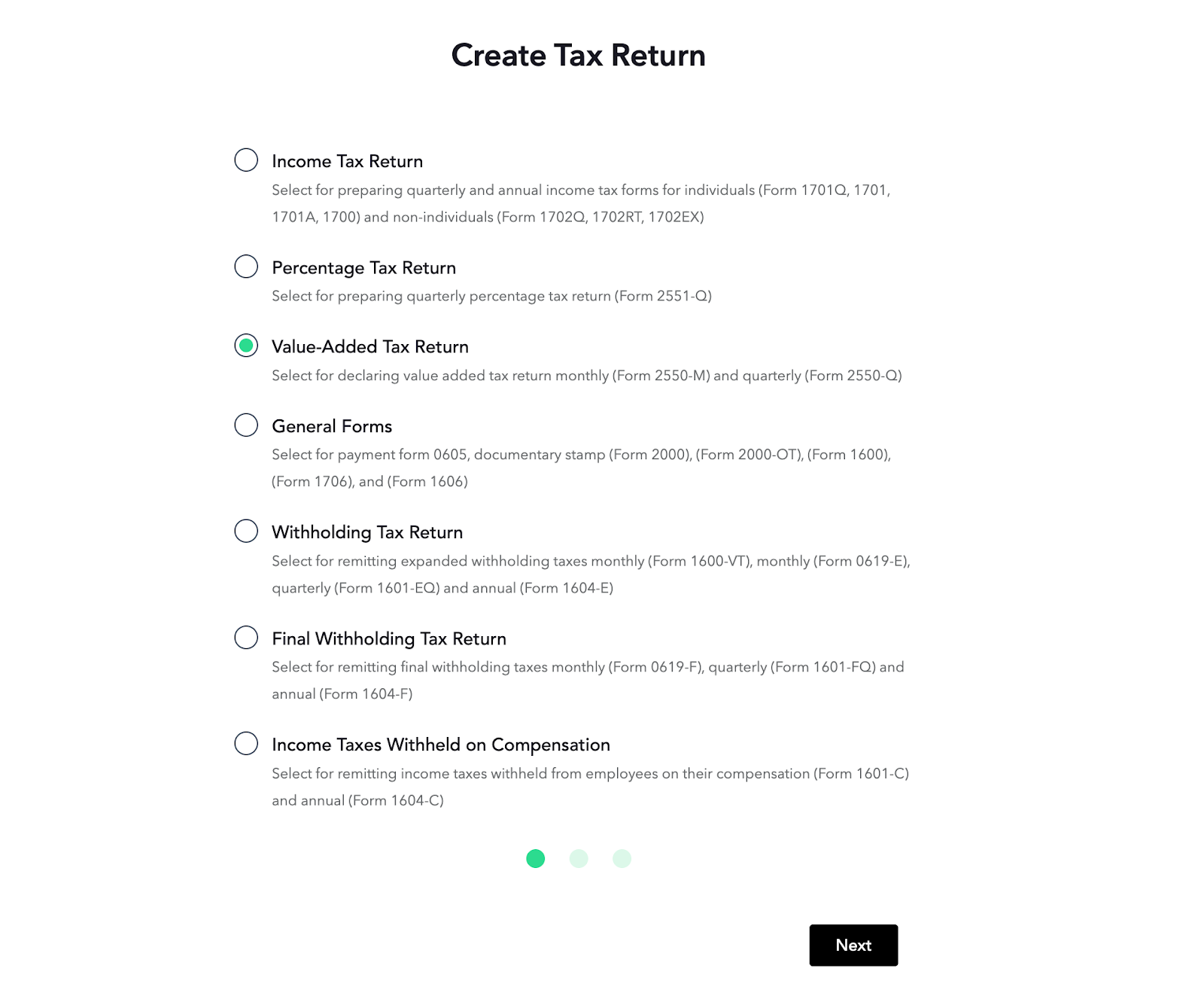
Here’s a list of available tax forms in Maya Quick Tax:
Individual
1700
1701
1701-A
1701-Q
Non-Individual
1702-Q
1702-RT
1702-EX
All Users
0605
0619-E
0619-F
1600
1601-C
1601-EQ
1601-FQ
1606
1706
2000
2000-OT
2550-M
2550-Q
2551-Q
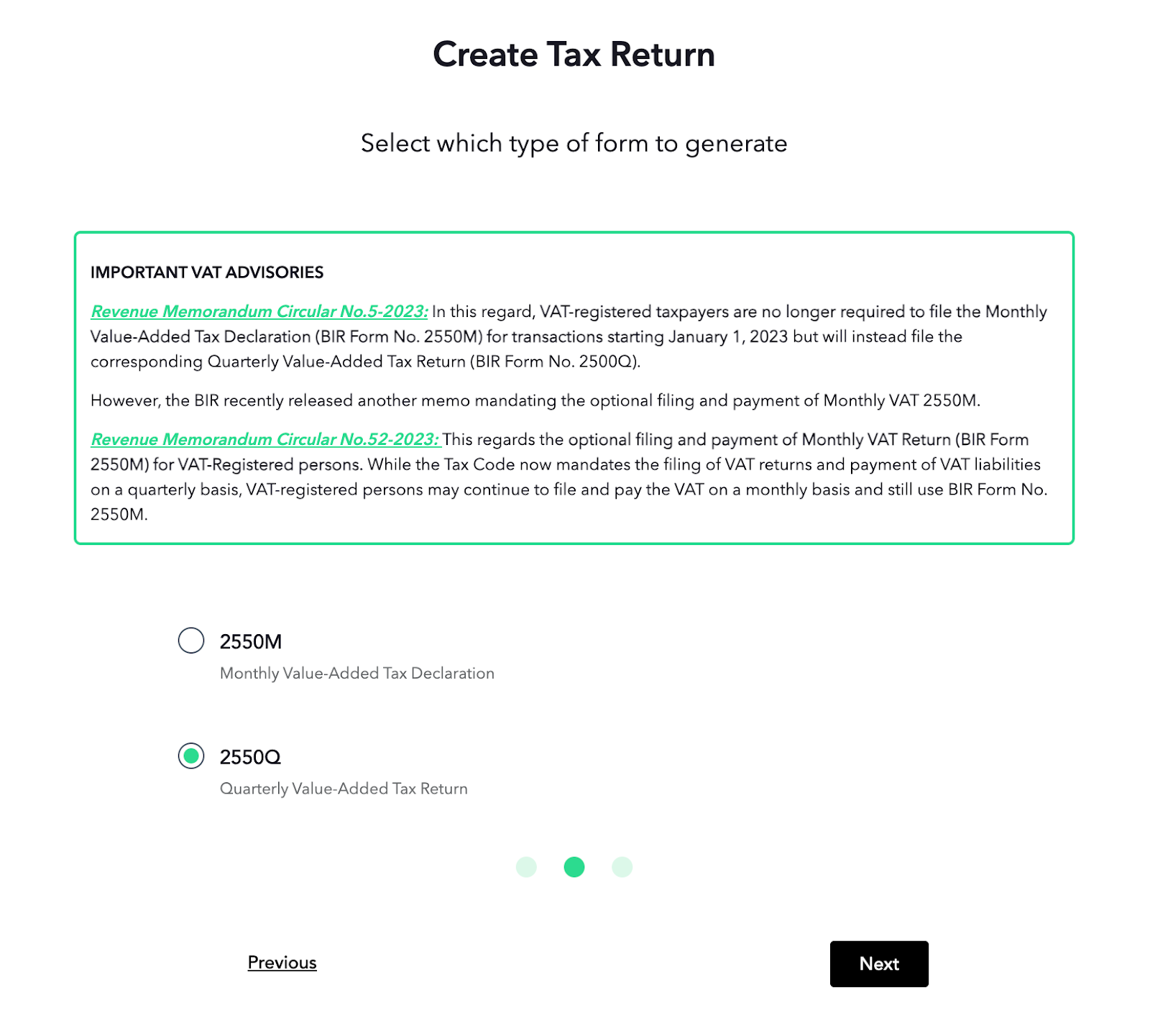
Certain sections of the form are pre-populated based on the information that the user has provided during the organization set up.
STEP 3: Forms are separated into sections (parts) following the actual forms of the BIR. Simply click a part to work on from the left side of the page. This will expand the form section, and you can start entering the necessary numbers.
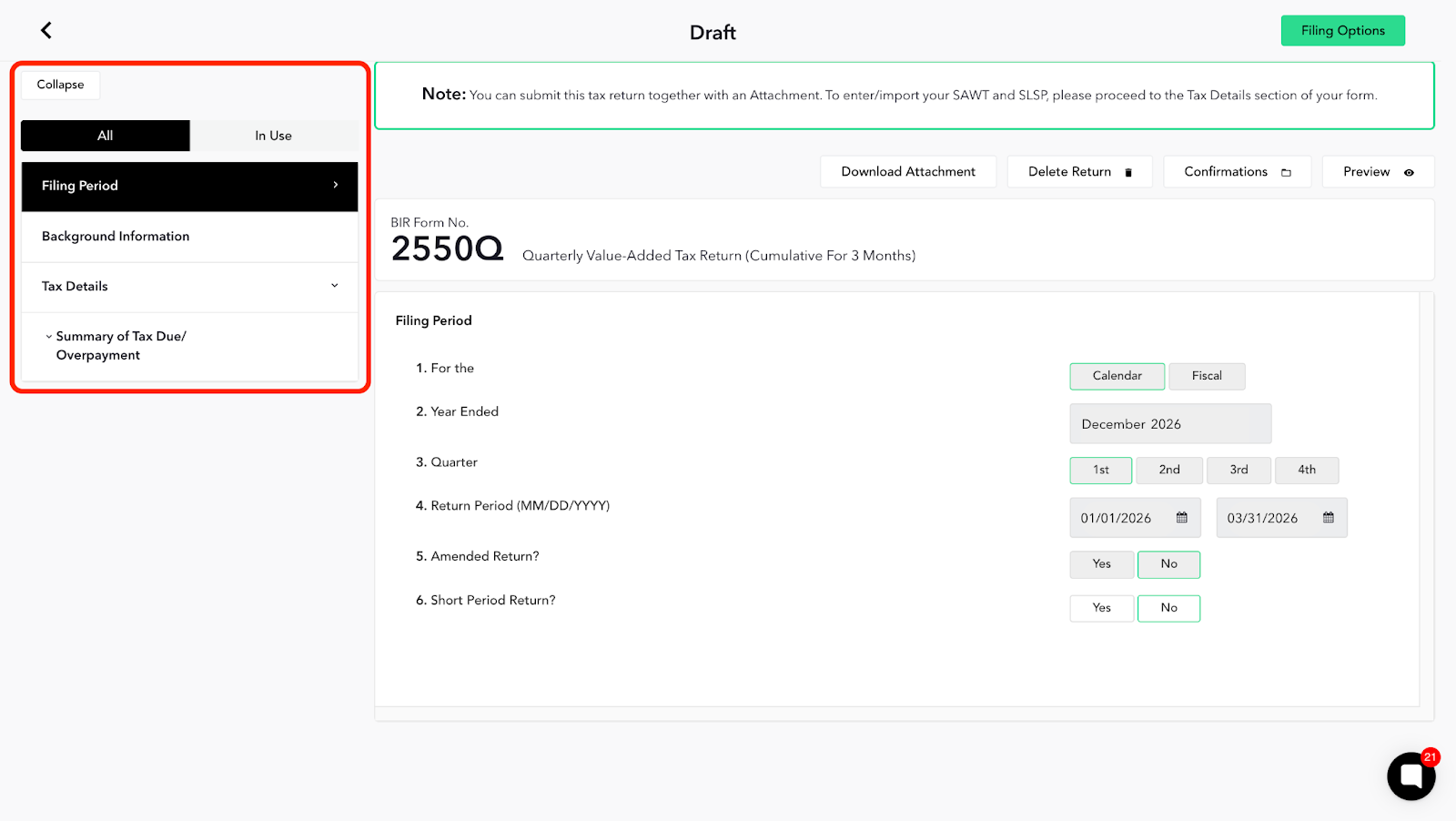
The numbers are pre-calculated based on the amounts you entered in each box. This ensures that all your taxes are computed accurately.
After completing the form, you are now ready to proceed to the next step: filing and payment. Click on the Filing Options button.
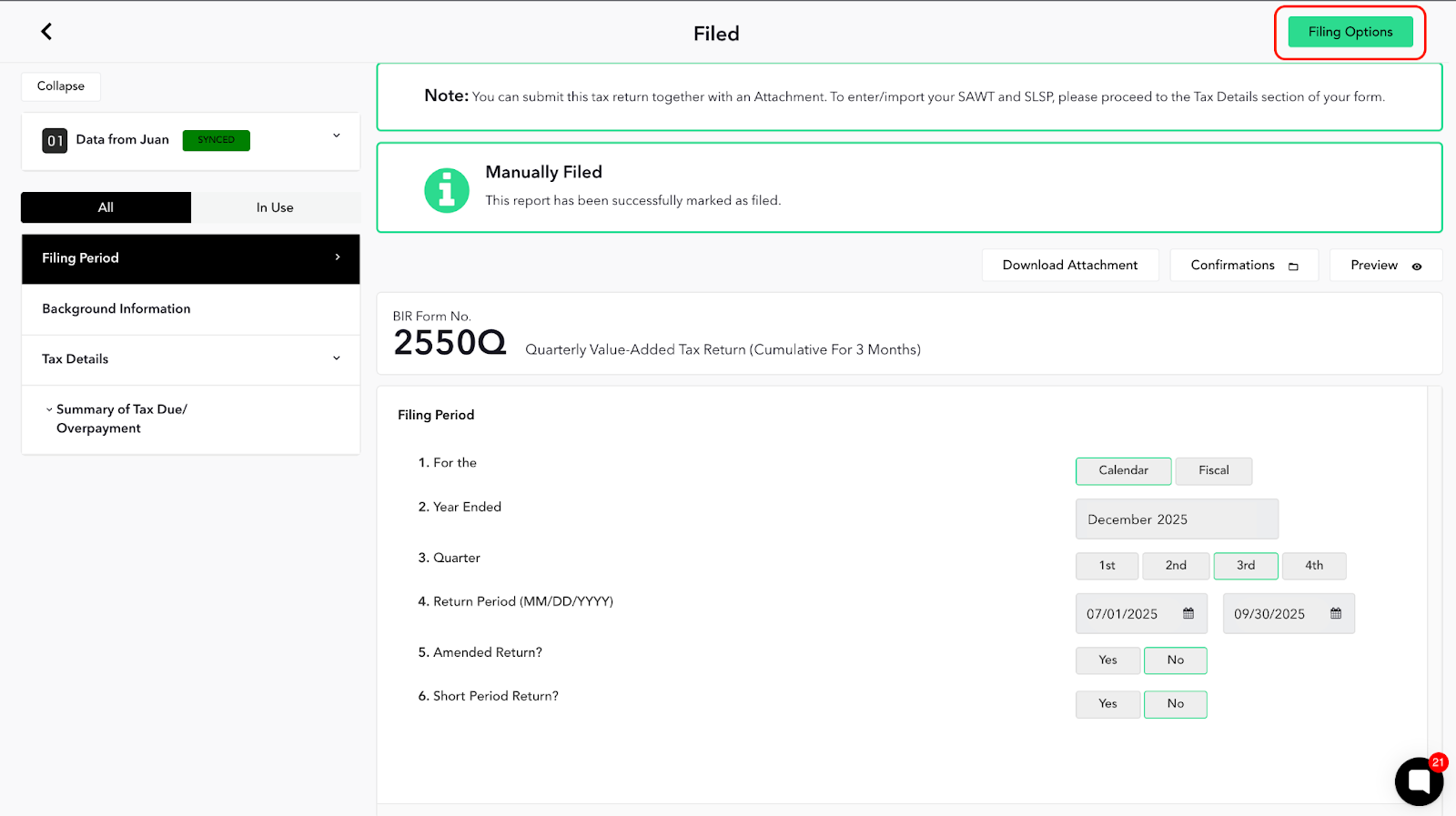
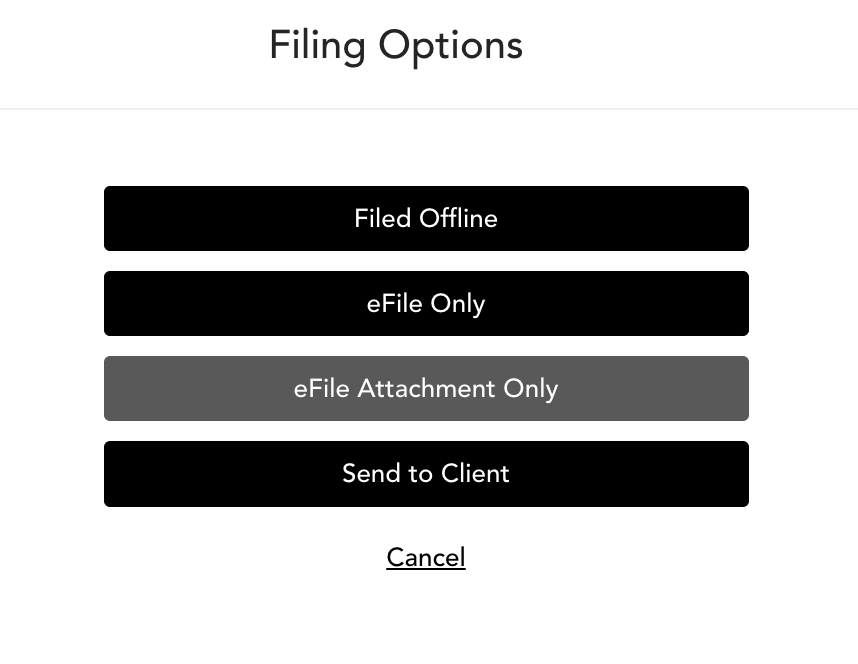
You have multiple options when filing your tax forms in Maya Quick Tax.
Filed Offline: This option does NOT transmit your tax form to the e-BIR servers; it will only lock your tax form for future reference. This is the best choice if you intend to file outside the platform or if you have already submitted this return and simply want to document the filing.
eFile Only: This will in real-time file your tax return to the e-BIR servers.
eFile Attachment Only: This option appears only after selecting "Filed Offline." It is available if you wish to submit the attachment separately without filing the tax form.
Send to Client: This button allows you to send the tax form to your client or anyone else who needs to approve it. The form will be emailed to your client and can only be accessed after they enter the six-digit PIN that will be sent to their email address (which you will provide before sending). Your client will then have the option to approve, reject, or comment on the form. If the tax form includes any tax payable, your client must process the payment, after which the form will be automatically submitted to the e-BIR servers.
Reminder:
Tax returns filed after 9:00 PM will be processed the following day to provide ample time for validation and acknowledgment from the BIR.
